

If you need to make videos for a Moodle forum post, you can do this directly on Moodle.
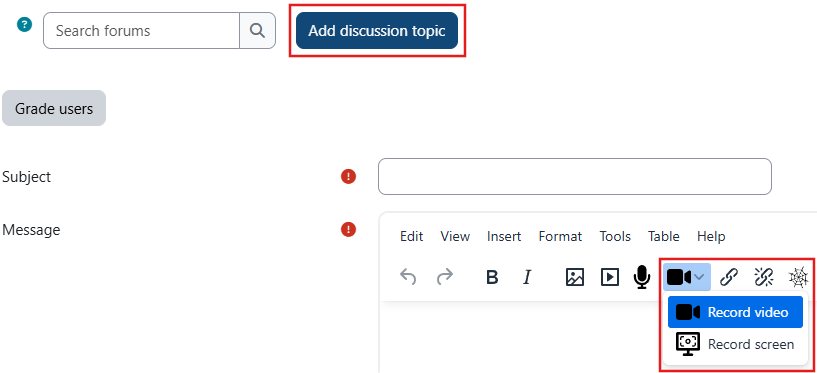
To do this, go to the forum, start a new conversation (“Add discussion topic”) and click the camera button.
Then you need to click “Record video” to use your camera, or “Record screen” to record something from your computer.
If you need to record your screen, choose what do you want to share.
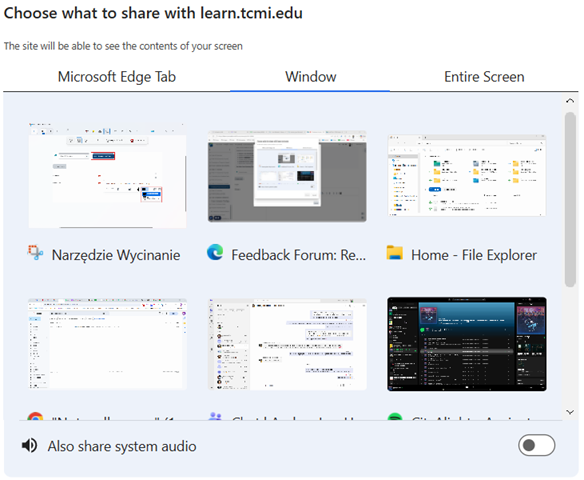
If you click your browser’s tab, you then need to choose a specific tab and the video will record just the content of a chosen tab.
Recording windows works similar, but you chose a window of any app instead of a browser tab.
If you choose “Entire screen”, the video will record everything you can see on your screen.
With any option be careful of what you share, to avoid recording any private details, but be especially aware of this while sharing the entire screen.
Normally the video will record only your microphone. If you need to record sound from an app you’re sharing, remember to check the “Also share system audio” option at the bottom of the window.
To start recording your your video, click “Start recording” and when you’re done, click “Stop recording”.
To add the video to the post, click “Attach recording”.